How Does Face Enrollment Work in a Face Recognition Attendance System
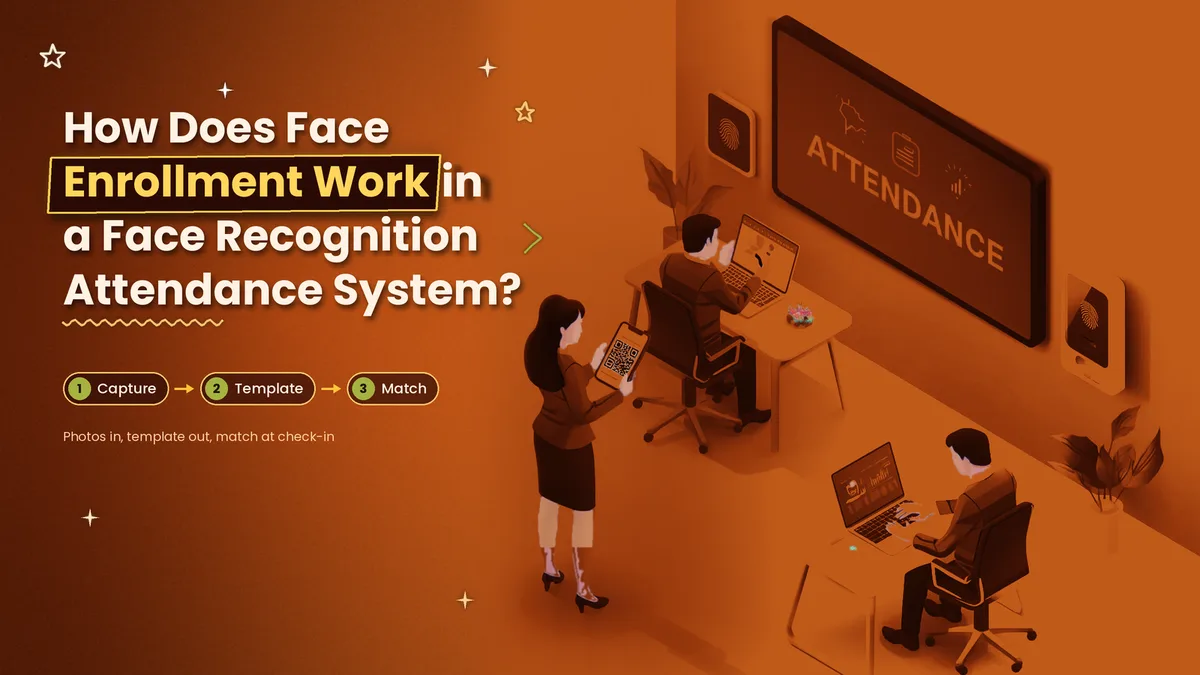
Every face recognition attendance system depends on one step that most buyers skip over: enrollment. Before the system can recognise anyone at the gate, it has to learn what each person looks like. If that step is rushed, staff get rejected at check-in, supervisors fix records by hand and the system gets blamed for a problem it did not cause. This guide explains how face enrollment works, how to take good photos, who should enroll and when, how the same idea works in a Python project, and how to deal with the problems that come up. It is written for owners, HR teams and admin staff in India, and for students who want to understand the process.
What Is Face Enrollment?
Face enrollment, also written as enrolment, is the step where a person's face is registered in the system. The system takes one or more photos, finds the face in each photo and turns it into a face template. A template is a set of numbers that describes the shape and spacing of the face. The template is saved against an employee record, such as a name and an employee ID.
Later, when the person checks in, the camera captures a live face and the system compares it with the saved templates. If the numbers are close enough, attendance is marked. This is why enrollment decides accuracy. A system can only match what it has stored, so a blurry or badly lit enrollment photo leads to failed matches for months. People also use the terms face registration and face attendance system for the same process, and the idea is the same under each name.
How Enrollment Works Step by Step
In most systems, enrollment follows the same six stages. The table below shows what happens at each stage and what to watch for.
Stage | What happens | Tip |
|---|---|---|
1. Add the employee | Create a record with name, ID, shift and department | Do this first, so the face is linked to the right person |
2. Capture photos | Take three to five photos from the front, with small changes in angle | Use steady, even light |
3. Quality check | The software checks for blur, poor light and more than one face | Retake any photo it rejects |
4. Create the template | The software converts the face into a template | Ask whether it also stores the original photo |
5. Test the match | The employee tries a real check-in straight away | Fix a failed match now, not next week |
6. Go live and review | Watch failed matches in the first week | Re-enrol anyone who keeps failing |
The fifth stage is the one people skip. A test takes ten seconds, and it tells you at once whether the template works at your gate and in your light. If it fails, you can retake the photos while the employee is still standing there.
How to Take Good Enrollment Photos
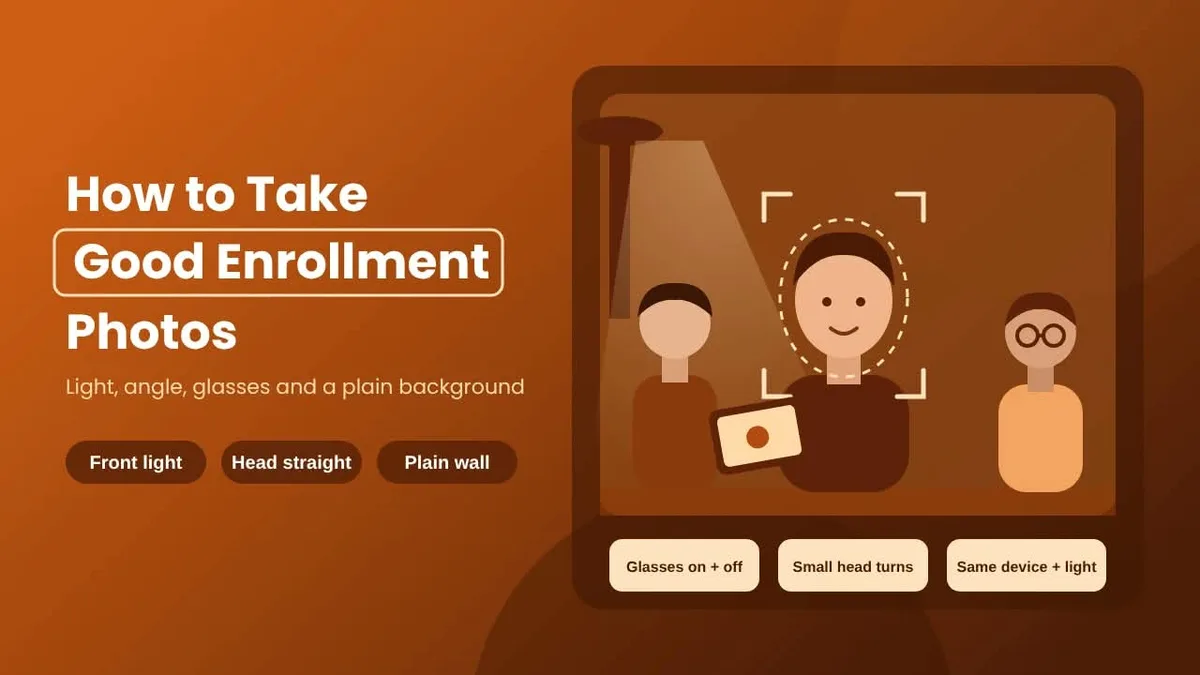
Good photos are simple to take, and they matter more than any setting. Use even light from the front, and avoid a window or a bright lamp behind the person. Ask the employee to face the camera with a natural expression, with the head straight and the whole face visible, including the forehead and ears if possible. Remove caps, scarves that cover the face and heavy shades. Keep a plain background where you can, and stand about an arm's length from the camera.
For people who wear glasses, enrol with the glasses on and again with them off, because the system sees the two looks differently. Take a few photos with a small turn of the head to the left and right, since a person never faces the camera at exactly the same angle twice. Whenever you can, enrol on the same kind of device and in the same kind of light that will be used for daily check-in, because a face enrolled under a studio lamp may fail at a dim gate.
Who Should Enroll and When
Enroll each new employee on the joining day, as part of onboarding, so attendance works from the first morning. When you roll the system out for the first time, enrol staff in groups by shift or department, so that you can test and fix problems without stopping the whole office. Many apps also allow remote enrollment, where the employee takes a selfie on their own phone and the admin approves it. That saves time for branches and field teams, but check each selfie for quality before you approve it.
Re-enrol when something changes, such as a new beard, a new pair of glasses or a major change of look, and whenever a person fails to match more than a few times. Remove the face of anyone who leaves on their last day. If your HR software already holds employee data, business automation can pass each new joiner to the attendance system automatically, so nobody types the same details twice.
How Face Enrollment Works in a Python Project
Students often search for a face recognition attendance system in Python, and the enrollment step there is easy to follow. You create one folder for each person and put five to ten photos in it. A script loads each photo, uses a face detector to find the face, and passes it to a library such as face_recognition or DeepFace, which returns an encoding, a list of numbers for that face. The script saves all the encodings, together with the names, in a file or a small database.
When the program runs, it reads the camera, makes an encoding for each live face and compares it with the saved ones. The closest match under a set distance is marked present. The same rules apply as in a business system. More photos in different light give better results, and a person who is enrolled from one blurry image will fail often. The difference is that a project has no approval step, no records of who enrolled whom and no way to delete data for people who leave, which a real workplace needs.
Common Enrollment Problems and Fixes
The most common problem is a face that is rejected as too dark or blurry. Move the person to better light, clean the camera lens and retake the photos. A second problem is more than one face in the frame, which confuses the template, so enrol one person at a time. A third is a look-alike, where two staff members are mixed up. Re-enrol both with several photos each, and ask your vendor whether the matching strictness can be raised.
Some people will still fail now and then, whether because of an injury, heavy makeup or a new look. Keep a backup way to check in, such as a QR code, so that no one loses a day of attendance. Our guide on the QR code attendance system explains how a QR check-in works and why it is a good backup.
Privacy and Consent When You Enroll Faces
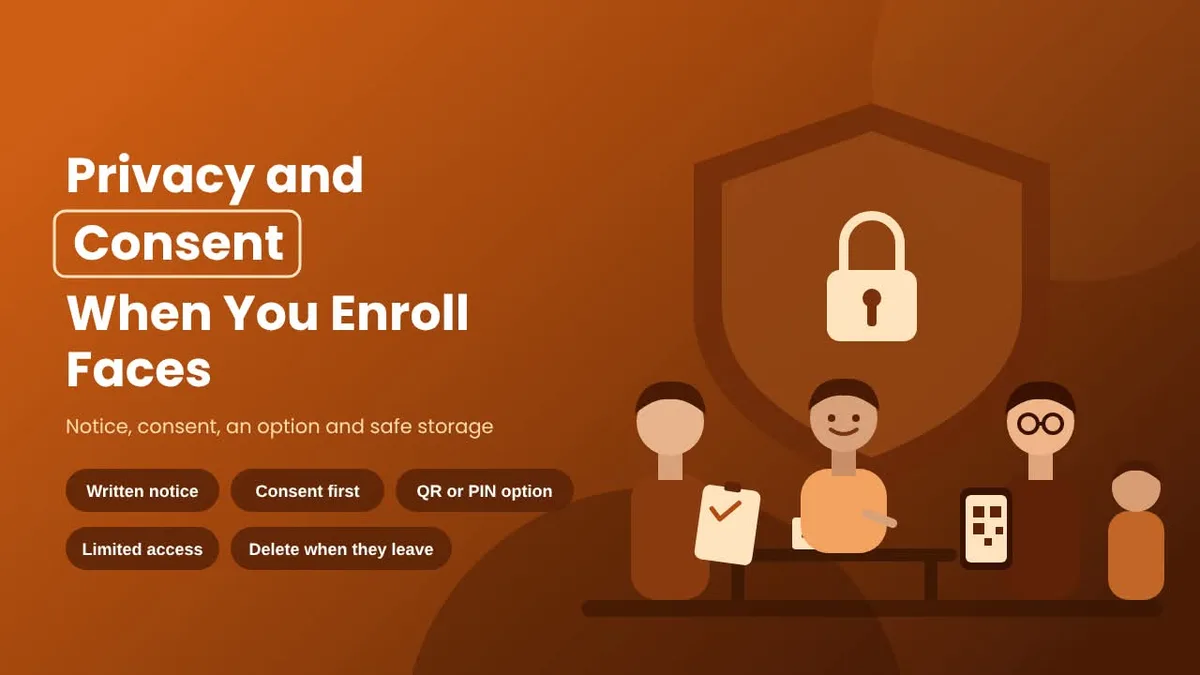
A face template is personal data, and India's Digital Personal Data Protection Act, 2023 applies to how employers handle it. Before you enrol anyone, tell them in writing what you collect, why you collect it and how long you keep it. Take their consent, and offer a simple alternative, such as a QR check-in or a PIN, for anyone who does not want to enrol. Limit who can see the data, store it securely and delete a person's template when they leave. This is general information and not legal advice, so check your policy with a legal adviser.
Where Enrollment Fits in a Face Attendance System
Enrollment is the first of four parts in any face attendance system. After it comes check-in, where the live face is matched. Then come the rules, where shifts, late marks and overtime are applied, and finally the reports, where daily and monthly totals are ready for payroll. A weak first part makes the other three weaker, because the system cannot mark what it cannot match. To compare how different systems handle these parts and what they cost, read our guide to the face biometric attendance system.
Face Enrollment with Attendi
Attendi keeps enrollment simple, because it works through the app. Employee management lets you add each person with their ID and shift, and employees can check in with face capture, which is available on the Pro plan, as well as QR attendance and selfie attendance on the higher plans. Field work attendance covers staff who work away from the office, so they do not need to come to a gate to be enrolled. Custom settings let you define working hours, shifts, late rules, holidays and weekly offs, and leave management links approved leave to attendance so that leave is not marked as absence.
Every check-in feeds the employee management and attendance reports, which give daily and monthly totals ready for payroll. Attendi comes with a 15-day free trial when you sign up at attendi.in, so you can enrol a small team, test the matches at your own entrance and see how enrollment works before you decide.
Final Thoughts
Face enrollment is a small step that decides how well a face recognition attendance system works. Take clear photos in even light, test the match straight away, enrol on joining day, re-enrol when a look changes and keep a backup check-in for the rare failure. Get consent, delete the data when someone leaves and review failed matches in the first week. With those habits, the rest of the system, from check-in to payroll, runs with far less manual work.